Introduction
If you’ve needed custom UI inside a model-driven Power App, you’ve historically had two options: embed a Canvas App or write custom client-side JavaScript. Both work. Neither is great. Canvas Apps carry performance overhead and always feel like two apps stitched together. Client-side JS is powerful but brittle, hard to maintain, and raises the skill floor for your team.
The Power Apps app agent offers a third path. Through generative pages, you describe what you want in natural language, and the agent writes React code that runs natively inside your model-driven app, querying Dataverse directly through the Web API.
I spent a weekend stress-testing this. 130 prompts. About 8-9 hours. The result was an editable billing schedule grid with relational data, inline editing, filtering, and formatted revenue columns. My honest estimate for hand-coding the same thing in React? 60-80 hours. But I also watched the app agent delete 1,300 lines of working code in a single prompt. So let’s get into what actually happened.
What Are Generative Pages?
Generative pages are the output of the Power Apps app agent inside model-driven apps. You describe the UI you need, the agent generates React and TypeScript code, and the result renders as a native page in your app. No embedding. No connector layer. Direct Dataverse Web API access.
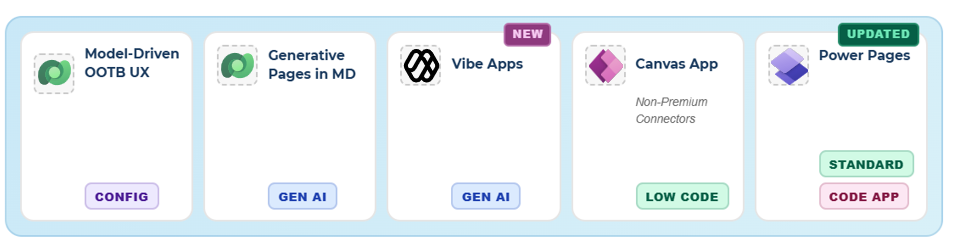
This matters for two reasons. First, performance. Because the output hits the Web API directly, you skip the connector abstraction that slows Canvas Apps down. In my testing with multi-filter queries across opportunities and related billing schedules, the difference was immediately noticeable.
Second, ecosystem trajectory. Microsoft is increasingly rewarding teams who commit to Dataverse. Copilot Studio, generative pages, the MCP server, agent builder; they all assume Dataverse as the foundation. If your organization is evaluating whether to centralize on the platform, capabilities like this are shifting the math.
The Experiment: Two Practitioners, One Use Case
To get an honest read on this capability, I didn’t just test it myself. I also had an associate developer on our team take a separate run at the same use case.
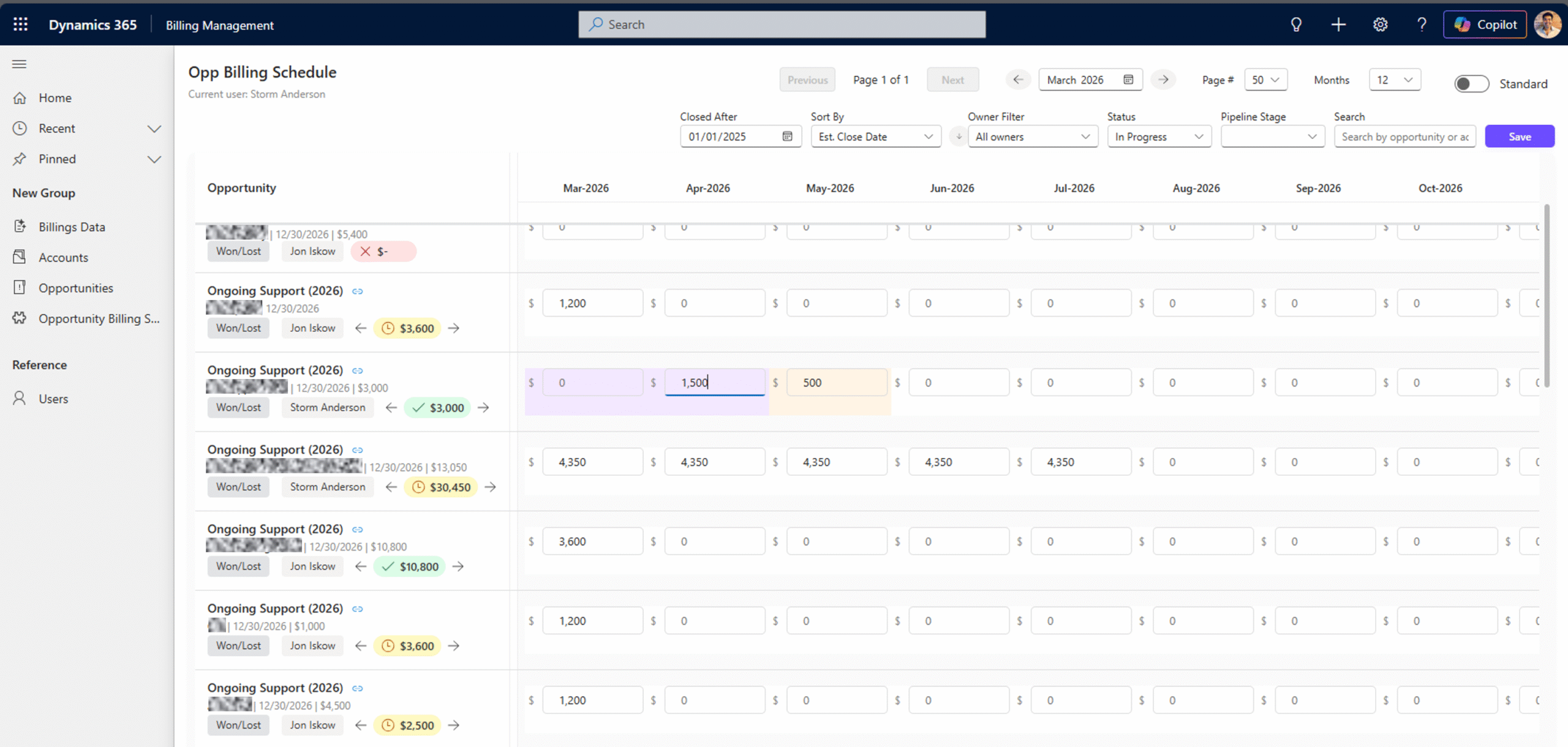
The use case: an editable billing schedule grid tied to Opportunity records. Opportunities as rows, billing schedule months as columns, with inline editing, status filtering, account filtering, date range controls, and formatted revenue display. Mid-complexity, real-world, relational.
The results:
- Associate developer: 21 total prompts across two attempts. First attempt ran 17 prompts before stalling. Second attempt hit a dead end after 4.
- Me (senior partner, front-end developer background): 130 prompts over 8-9 hours to reach a functional, polished result.
The gap between those two experiences is the core story of this post. It’s not about the tool being good or bad. It’s about what makes the difference between getting stuck and getting results.
Where the Power Apps App Agent Shines
Before I get into the gotchas, I want to be clear: this tool saved me an enormous amount of time, and the output is genuinely good.
Speed. 8-9 hours versus an estimated 60-80 hours of hand-coding React. Even accounting for the errors and undos, that’s roughly a 7-8x productivity multiplier. I’m a front-end developer, but I’m rusty on writing React from scratch. The app agent let me stay in the architecture and logic layer while it handled the boilerplate.
Direct Web API access. Once I identified that the agent’s default SDK calls couldn’t handle $expand for relational data and explicitly told it to switch to /api/data/v9.2/ calls, the querying became robust. I was able to build complex multi-table queries, filter by status and account, and handle date-based column generation, all through direct Web API calls that performed significantly better than Canvas App connectors would have.
The code is readable and editable. This is the part that doesn’t get talked about enough. The app agent generates real React code that you can open, read, debug, and improve. During my session, I wasn’t blindly accepting output. I was opening the browser console, reviewing network tab responses, and catching issues the agent couldn’t see.
In one case, I identified in the network tab that a response value was coming back with an unexpected forward slash. The agent had no idea. But once I told it exactly what the response looked like, it immediately adjusted its parsing logic and moved forward. That kind of human-in-the-loop debugging is where the Power Apps app agent really shines. It’s not replacing developers. It’s giving developers with platform knowledge an extraordinary accelerator.
Breaking Down 130 Prompts
Here’s where it gets interesting. Not all 130 prompts moved the project forward. Here’s the honest breakdown:
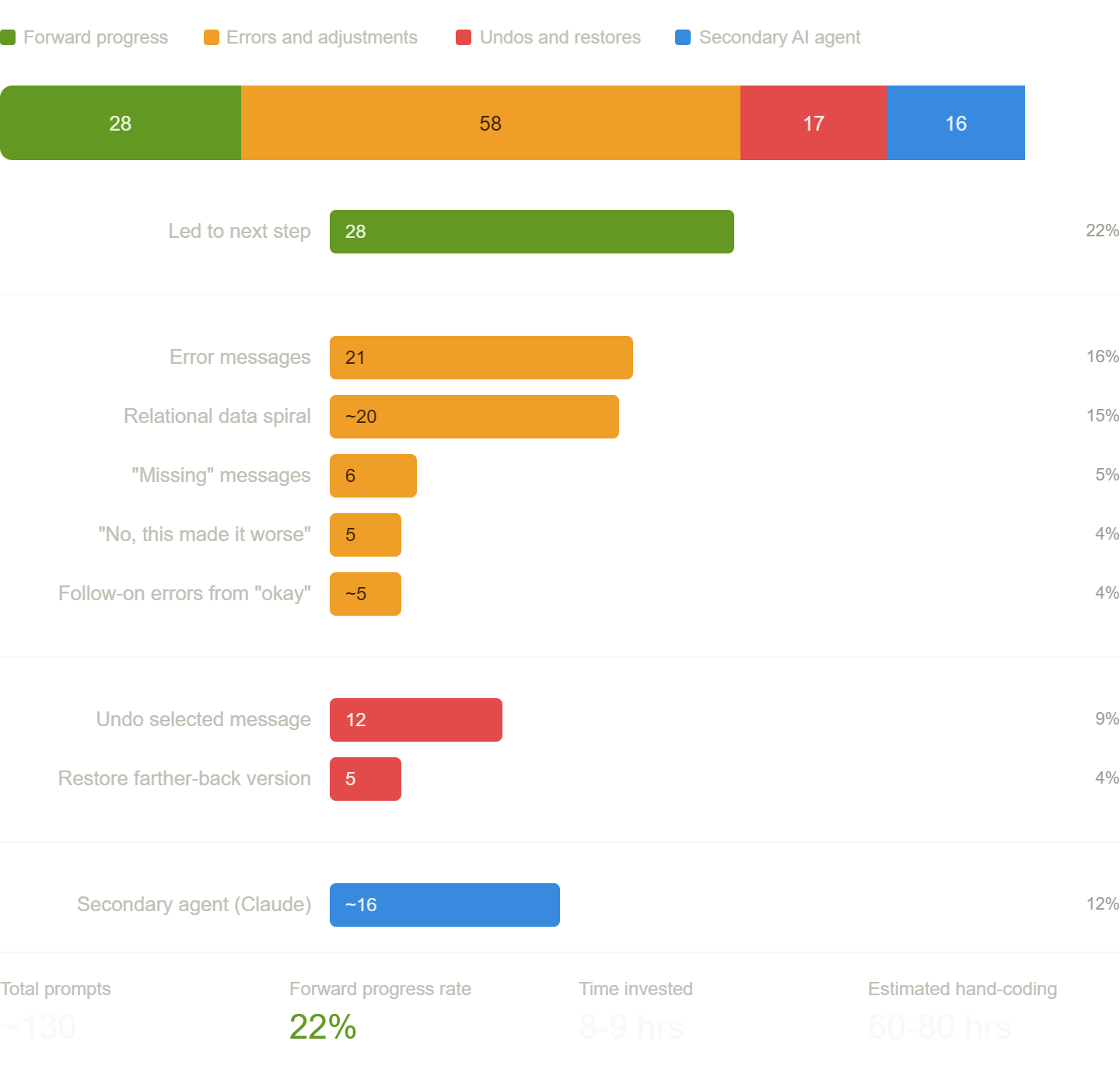
Roughly 30% of my prompts were productive forward motion. The rest were error handling, course correction, and recovery.
The relational data spiral deserves its own callout. The Power Apps app agent defaults to the SDK for data queries, but there’s an undocumented limitation: it can’t do $expand to grab properties from related entities. This caused about 20 prompts of circular troubleshooting before I identified the root cause myself and explicitly told the agent to replace those SDK calls with direct Web API calls. Once I did, it unlocked the full querying capability I needed.
The secondary agent usage (~16 prompts) refers to me pulling the generated code into another AI model (Claude) for review, refactoring, and catching issues the app agent introduced. More on that in the best practices section.
The Three Biggest Gotchas
Gotcha 1: The Agent Rewrites Everything
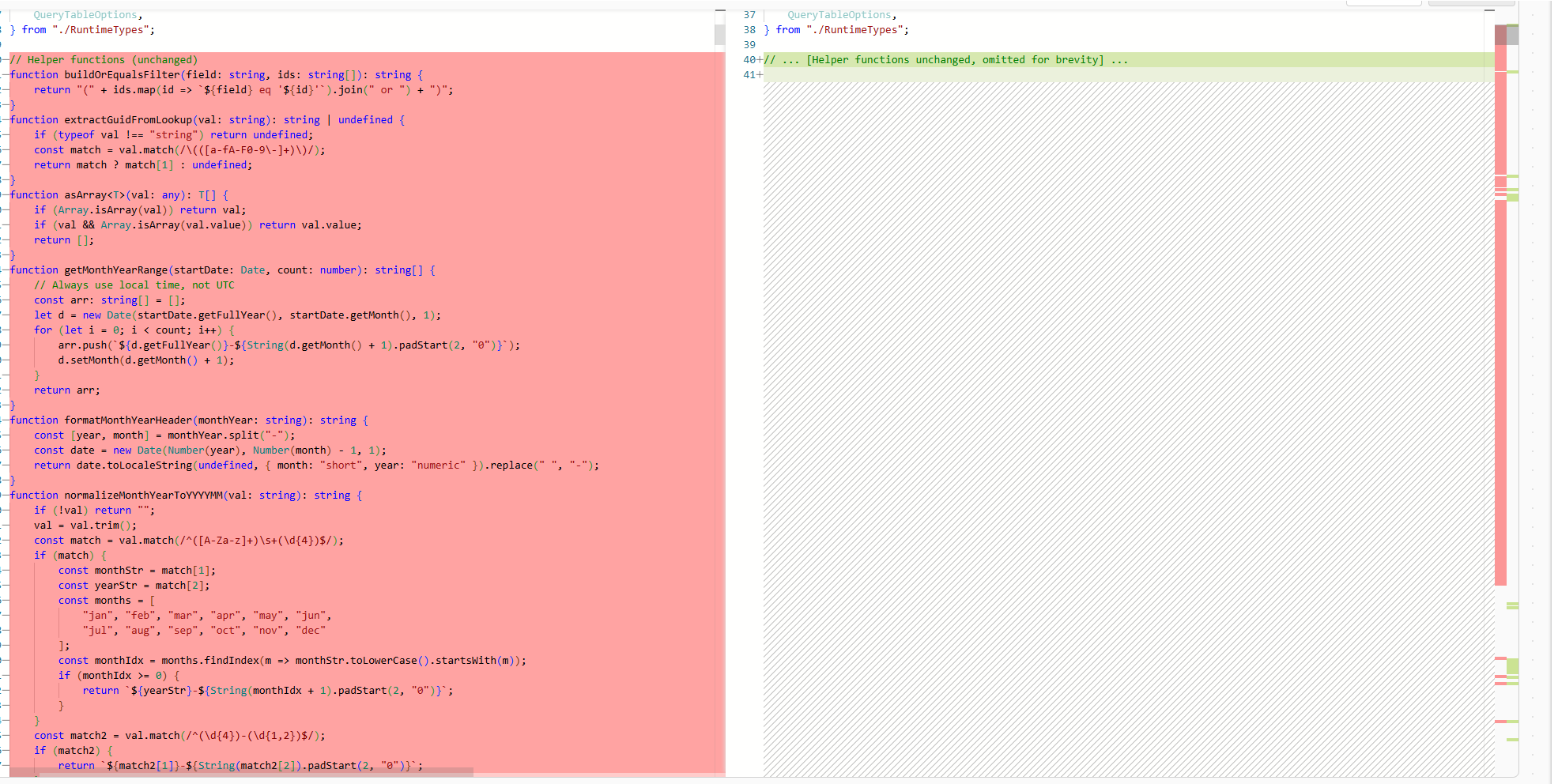
Every prompt rewrites the entire file from top to bottom. On small, incremental requests, this works fine. On larger enhancement requests, the agent will silently delete hundreds of lines of working functionality while adding the new feature.
I asked for a shift-billing-by-one-month feature with left and right arrow buttons. The app agent’s response deleted approximately 1,300 lines of code (lines 40 through 1382) while attempting to add the new feature. The page wouldn’t load.
I had to restore a prior version and then incrementally add the same functionality across several smaller prompts.
The rule: one behavior per prompt. Never combine multiple changes. If your enhancement request is longer than two sentences, break it up.
Gotcha 2: The Agent Doesn’t Know What It Can’t Do
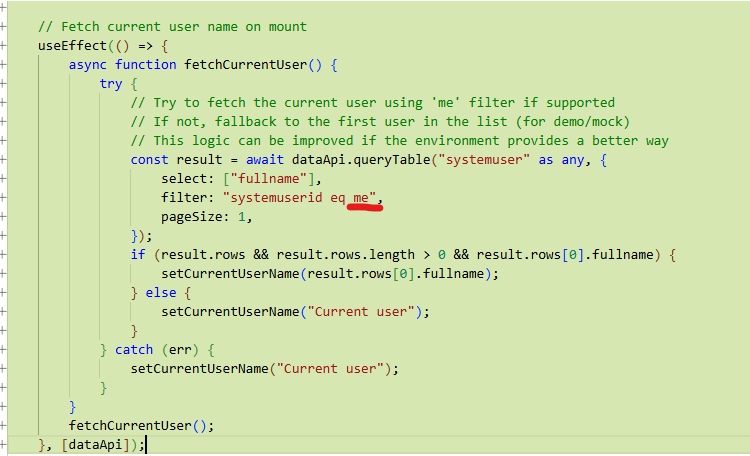
When I asked the app agent to display the current user’s name, it generated a filter using the literal string “me” in the query: filter: "systemuserid eq me". It had no awareness that me isn’t a valid OData filter value, and no knowledge that the /WhoAmI API endpoint exists.
Once I explicitly told it to use /api/data/v9.2/WhoAmI, it implemented the solution cleanly in a single prompt with proper useEffect hooks and state management. No issues.
The rule: don’t assume the app agent understands the runtime environment. Be explicit about APIs, endpoints, and available services. If you know the right approach, tell it.
Gotcha 3: The Relational Data Spiral
The app agent defaults to the Dataverse SDK for data queries. The SDK works fine for simple, single-table reads. But when you need to grab properties from related entities using $expand, it hits an undocumented wall.
This caused roughly 20 prompts of circular troubleshooting. The agent kept trying variations of the SDK approach, failing, trying again, and producing increasingly broken code. It never identified the root cause on its own.
Once I diagnosed the issue and explicitly instructed it to switch to direct /api/data/v9.2/ Web API calls, the relational queries worked immediately. This single insight unlocked the rest of the build.
The rule: if you’re working with relational data across multiple Dataverse tables, start by telling the agent to use direct Web API calls instead of the SDK. Save yourself 20 prompts.
The Associate Developer Perspective
Our associate developer’s experience tells a different, equally important story.
She approached the same use case with clear, well-written prompts describing what the grid should look like and how it should behave. Her prompts were honestly good. The problem wasn’t prompt quality. It was that when the app agent failed, the failures were opaque.
Without deep platform knowledge, she couldn’t diagnose why the agent was stuck. She didn’t know about the SDK-versus-Web-API limitation. She didn’t have the instinct to open the network tab and check response payloads. When the agent produced an error, she didn’t have the context to tell it specifically what to do differently.
After 17 prompts on the first attempt and 4 on the second, she hit a wall.
This isn’t a criticism but rather an interesting observation of how experience varied with skillset. The Power Apps app agent currently rewards platform expertise. The prompts that unlock progress aren’t “make a grid.” They’re “switch from the SDK to /api/data/v9.2/ calls and use $expand to include the billing schedule’s invoice amount.” That level of specificity requires architectural knowledge most associate developers are still building.
Performance and Session Management
One thing to call out is that at 130 prompts, the chat history caused the editor to hit some performance problems. When closing and re-opening the editor, it took around ~2 minutes to fully load the history before I could begin prompting again. Ongoing editing got progressively slower as the session grew.
The workaround: I created a new generative page with a “blank page” prompt, then manually pasted the React code from my existing page into the code editor. The new instance ran dramatically faster without the accumulated history weight.
This is a maturity issue, not a dealbreaker. But it’s worth knowing before you commit to a long editing session. If your page is working and you need to keep iterating, start a fresh session and carry the code forward.
Best Practices for Working with the Power Apps App Agent
These emerged from 130 prompts of trial, error, and recovery.
1. Prompt incrementally. One behavior per prompt. Small, additive requests. Never combine multiple features. The full-file rewrite model punishes ambitious prompts.
2. Tell the agent how to query data. If you need relational data, specify direct Web API calls (/api/data/v9.2/) upfront. Don’t let it default to the SDK and discover the limitation 20 prompts later.
3. Read the generated code. Open the code tab. Review the diffs. This isn’t a black box. The more you understand what the agent wrote, the better your next prompt will be.
4. Use the browser dev tools. Console logs, network tab, response payloads. The app agent can’t see what’s happening at runtime. You can. Feed those observations back as precise, specific prompts.
5. Bring a second AI model. I used Claude alongside the app agent for code review, refactoring, and catching functionality the agent silently removed. The generative agent is great at scaffolding and iteration. A second model is better at preservation and precision.
6. Start fresh when the session gets heavy. Copy your code, create a new blank page, paste it in. The performance difference is significant.
7. Specify APIs and endpoints explicitly. The agent doesn’t know what it doesn’t know. If you need /WhoAmI, say /WhoAmI. If you need a specific OData filter pattern, write it out.
The Bigger Picture
Despite the rough edges, the Power Apps app agent represents a meaningful shift in how custom UI gets built inside model-driven apps.
For years, the answer to “I need richer UI” was either a Canvas App with its performance trade-offs or client-side JavaScript with its maintenance burden. Generative pages offer a third option that’s faster to build, performs better against Dataverse, and produces code you can actually read and maintain.
The combination I landed on, the app agent for scaffolding and iteration plus a second AI model for code management, is the most effective workflow I’ve found. It’s not perfect. But it turned a 60-80 hour project into a weekend.
If you’re building on the Power Platform and haven’t experimented with generative pages yet, now is the time. Just bring your platform knowledge and your prompt discipline. The tool rewards both.
Storm is a co-founder and partner at Kumo Partners, a Chicago-based Microsoft-aligned consultancy specializing in Power Platform, Dynamics 365, and Azure. Reach out if you’d like to talk about how generative pages and AI-driven development fit into your platform strategy.
0 Comments