Don’t Let Duplicates Drag You Down
Duplicate records are one of those “tiny” issues that quietly become a daily headache. They can throw off reporting, trigger automations on the wrong records, and create duplicate outreach. They also waste a lot of time, because someone eventually has to hunt everything down and clean it up. Effective data management in Dynamics 365 starts with proactive duplicate detection. The good news is you can dramatically reduce that tedious work with built-in duplicate detection in Microsoft Dataverse, and it’s easier to find now that Dynamics 365 Advanced Settings routes into the modern settings experience.
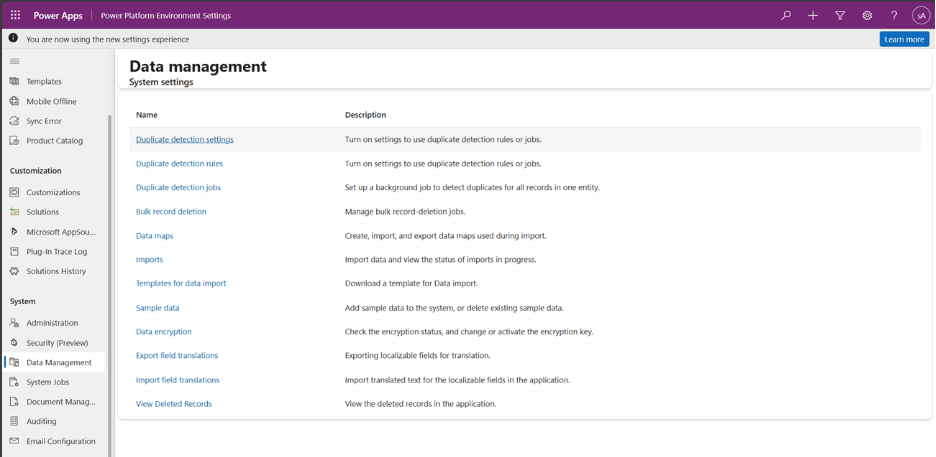
If you clicked Advanced Settings recently and thought “wait…where am I?” you’re not alone. In the updated flow, Advanced Settings opens the Power Platform Environment Settings app, where you manage data features like duplicate detection.
Why This Matters and Why It’s Worth 10 Minutes
When duplicate detection is set up properly, it does more than keep your data tidy. It streamlines day-to-day work because people spend less time double-checking records and redoing tasks. It also improves reporting accuracy, since you have fewer inflated counts and fewer “ghost” entries skewing dashboards. Automations become more reliable because flows, assignments, and notifications are less likely to fire twice. Most importantly, it reduces the constant manual cleanup that turns into a recurring chore. Instead of comparing nearly identical records one by one and guessing which one is real, you get a process that helps prevent duplicates and quickly flags the ones that slip through.
Step 1: Turn on Dataverse Duplicate Detection
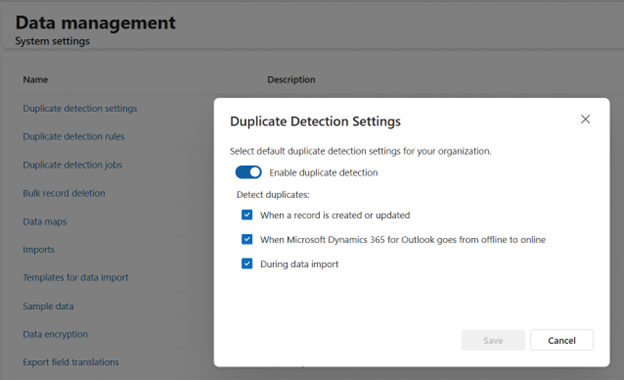
- Open Duplicate Detection Settings in the Power Platform Environment Settings app.
- Turn on Enable duplicate detection, in the event that it isn’t on by default.
- Choose when you want duplicate checks to run, such as:
-
- When records are created or updated
-
- During data imports
-
- Treat this as the master switch. If it is off, your rules and jobs will not help much.
Be warned, though, duplicate detection does not run for every type of data operation; specifically, high-volume API integrations and certain automated bulk imports may bypass duplicate checks. If your environment relies heavily on integrations, it’s worth validating whether those processes enforce uniqueness on their own. Volume API integrations and certain automated bulk imports may bypass duplicate checks. If your environment relies heavily on integrations, it’s worth validating whether those processes enforce uniqueness on their own. Volume API integrations and certain automated bulk imports may bypass duplicate checks. If your environment relies heavily on integrations, it’s worth validating whether those processes enforce uniqueness on their own.
Step 2: Create a Dataverse Duplicate Detection Rule that Matches How Your Business Works
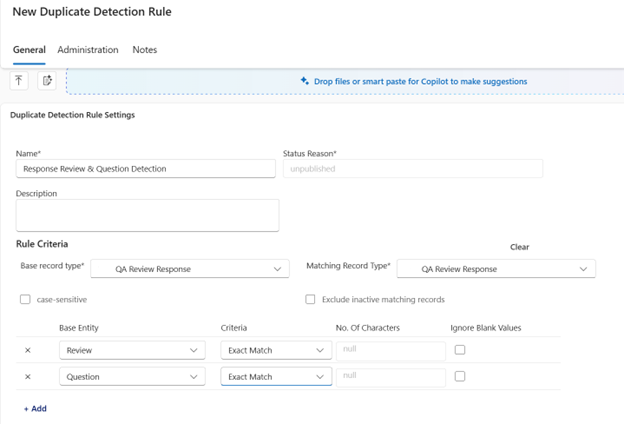
- Create a new duplicate detection rule.
-
- Set the Base Record Type and Matching Record Type. These are often the same table.
-
- Define the matching criteria fields that make a record truly “the same” in your process. Common examples include:
-
- Contacts: email address
-
- Accounts: company name + phone, or company name + website domain
-
- Custom tables: parent record + unique identifier
-
- Use rule options to reduce false positives and keep the experience user-friendly:
-
- Exclude inactive matching records so old records do not create noise
-
- Ignore blank values so empty fields do not accidentally match
-
- Case-sensitive matching for ID-style fields where capitalization matters
-
- Save and publish the rule. Publishing is a common missed step, and an unpublished rule will not behave the way you expect.
Step 3: Run a Duplicate Detection Job in Dataverse to Find and Fix Existing Duplicates
- Go to Duplicate detection jobs and create a new job.
-
- Choose what you want to scan, usually the same table you built your rule for.
-
- Decide whether to limit the scan using a view or filter, or run a broader scan if you are doing a cleanup.
-
- Run the job and review the results when it completes.
-
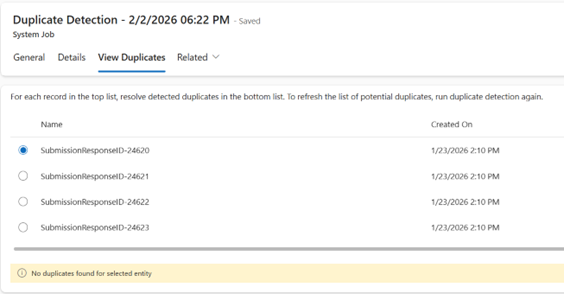
- Use the View Duplicates results to identify what needs to be merged or cleaned up.
This is where the biggest time savings shows up. Instead of spending hours searching, comparing, and deleting by hand, you get a structured list of likely duplicates that is ready for review.
A Practical Way to Roll This Out Without Annoying Your Users
The smoothest approach is to start small and build confidence. Begin with one high-confidence rule, such as Contacts matching on email address, because it is easy to explain and usually produces clean results. Run a detection job during a quieter window if you have a lot of records, then review what it finds and adjust the criteria if you see too many false matches. Once the first rule is working well, repeat the process for the next most important table. The goal is not to catch everything instantly. The goal is to make duplicates stop being a recurring problem that your team has to manually fix over and over again.
If you’d rather not own the ongoing tuning, cleanup cycles, and governance tweaks alone, explore Kumo’s monthly Power Platform & Dynamics support to keep your Dataverse data clean and your automation reliable as you scale.