Copilot Cowork became generally available in June 2026, and it has matured well enough (and survived a few name change cycles) that we’ve done a deep dive. This guide is the short version of what we’ve learned: how it differs from Copilot, what’s worth knowing about, and how to keep it governed and on budget.
Copilot vs Copilot Cowork
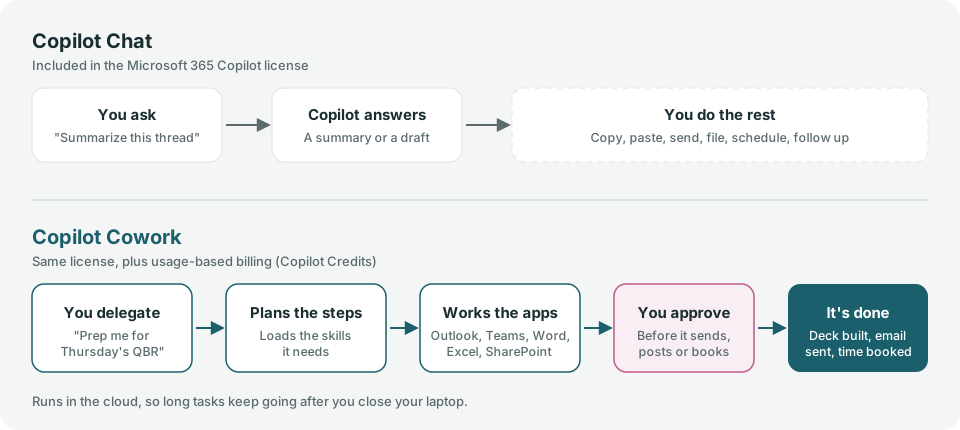
The simplest way to think about it: Copilot Chat answers. Cowork delivers.
| Microsoft 365 Copilot (Chat) | Copilot Cowork | |
|---|---|---|
| What you get back | An answer, summary or draft | Finished work: the deck, the sent email, the booked meeting |
| Task size | One question at a time | Long, multi-step, multi-app tasks |
| Cost | Included in the per-user license | License, plus usage-based Copilot Credits |
| Reach for it when | You need to know something | You need something done |
Cowork lives in the same Microsoft Copilot app. You switch to it with the Cowork toggle next to Chat (this has moved a few times already so stay on the lookout for a new location), in the browser, Outlook, Teams, the desktop app or on your phone.
What Cowork can do
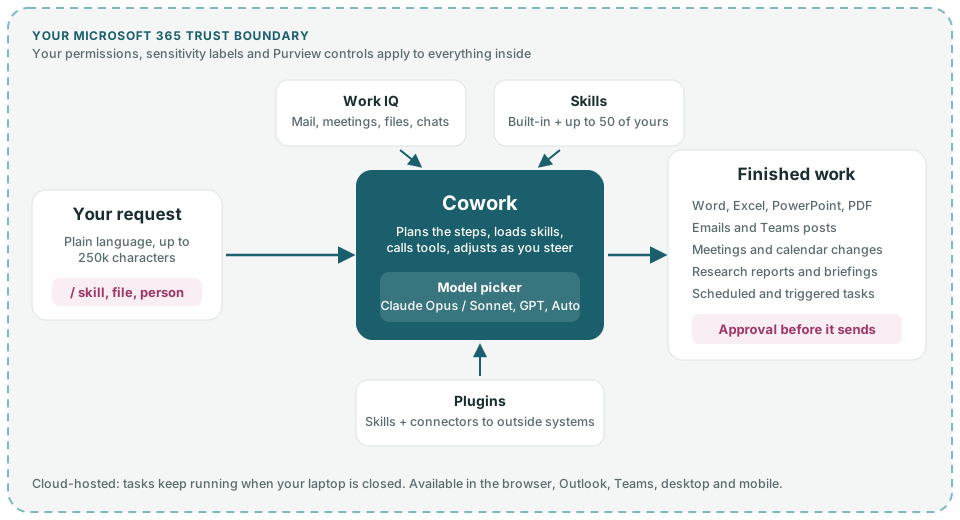
The features that matter most in day-to-day use:
- It knows your work context. Cowork draws on Work IQ, Microsoft’s layer over your mail, meetings, files, chats and people (built on the Microsoft Graph). That’s why “Jon and I met with them yesterday, find the transcript” works without naming the meeting.
- The
/menu. Type/to point Cowork at a specific skill, file, person, meeting, email, chat, channel or site. It’s the single best habit for better results, because Cowork stops guessing. It works in your custom instructions too. - Skills. Cowork loads skills as it needs them: Word, Excel, PowerPoint, PDF, Email, Scheduling, Meetings, Daily Briefing, Enterprise Search, Deep Research and more. You can add up to 50 of your own, and Cowork scores each one for quality before you rely on it.
- Automations. Run a prompt on a schedule (a Monday pipeline summary) or when something happens (an email from a key client arrives).
- Model choice. Pick the model per task, including Anthropic’s Claude Opus and Sonnet, or let Cowork choose.
- You stay in control. Pause, steer or cancel mid-task. Sends, posts and bookings wait for your approval, with a risk level shown.
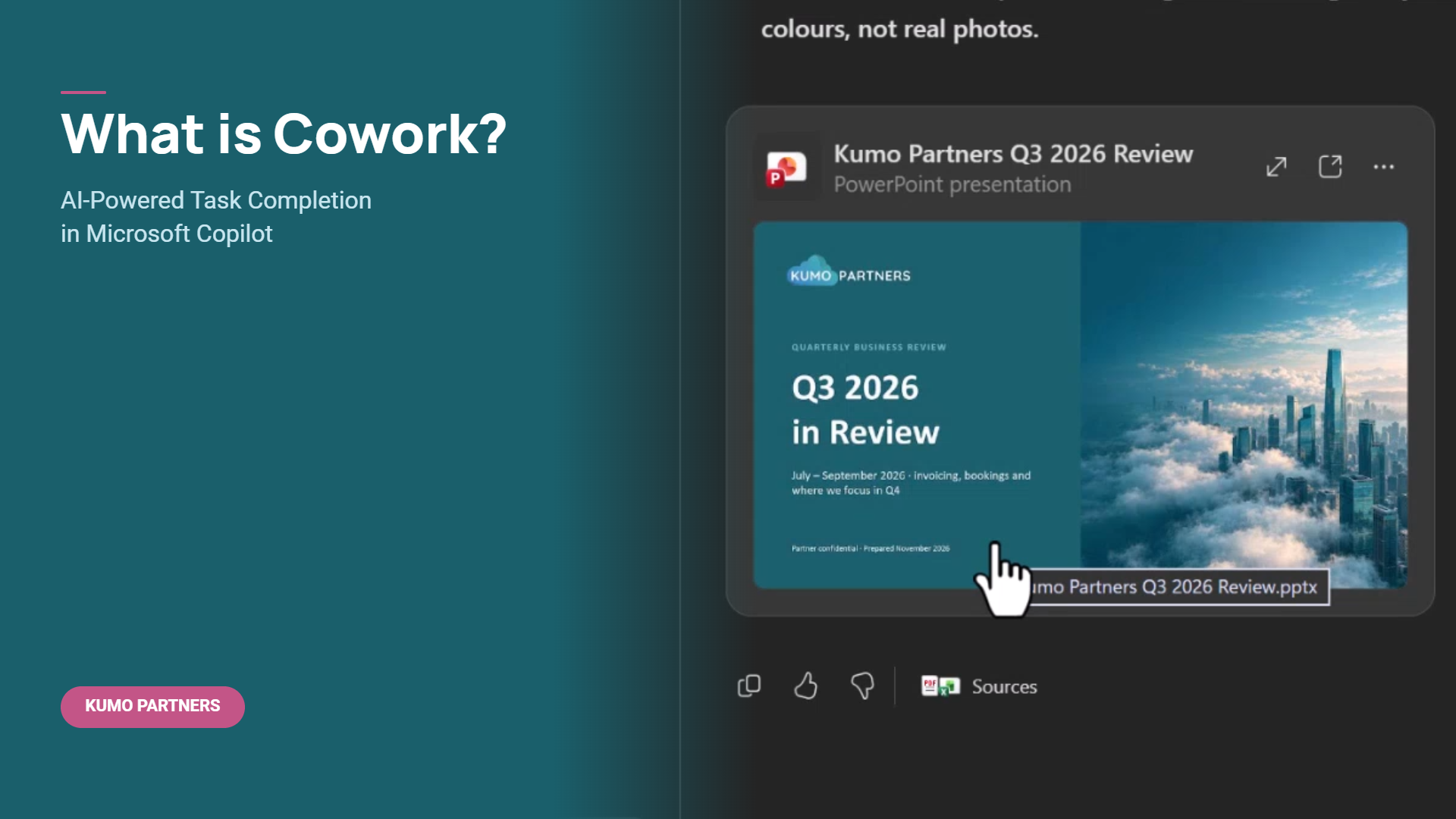
Here’s what that looks like in practice. One prompt, two / references (our brand style guide and our annual planner), and Cowork builds a branded quarterly review deck:
Practitioner tip: custom skills are where Cowork starts to feel like your own. A skill is a SKILL.md file in your OneDrive (Documents/Cowork/skills/). Write down how you want a proposal, status report or client follow-up done once, and Cowork follows it every time. You can also just ask Cowork to build the skill with you in chat.
The plugin ecosystem
Plugins extend Cowork past Microsoft 365. A plugin can bring skills (know-how, like financial analysis or legal research), connectors (access to an outside system), or both. They come from the Microsoft 365 App Store, use the same package format as Teams apps, and admins decide which ones are allowed.
| Type | Examples |
|---|---|
| Microsoft role plugins | Sales, Service, Finance, Capital Markets, Accounting (Frontier) |
| Microsoft business apps | Dynamics 365 Sales, Customer Service and ERP, Microsoft Fabric |
| Partner plugins | Harvey, LSEG, Moody’s, Morningstar, S&P Global Energy, Miro, monday.com, and a fast-growing list including Atlassian, Box, Canva, Adobe and Databricks |
| Your own | Custom skills, and plugins your team builds for internal systems |
Our advice: start with custom skills, then add plugins. Most of the early value comes from teaching Cowork how your team works. Add a plugin when a task needs data that lives outside Microsoft 365, like your CRM, ERP or a market data feed.
Best use cases
Cowork is worth its cost on work that spans several apps and ends in a deliverable. A few that pay off for us and our clients:
| Use case | Try asking |
|---|---|
| Meeting transcripts | ”Please pull the updates that we discussed in our leadership meeting yesterday.” |
| Follow-ups | ”Write the follow-up from /Acme weekly sync, attach the SOW, and draft it for my review.” |
| Decks from scratch | ”Turn the Q3 numbers in /Q3 results.xlsx into a 10-slide exec summary.” |
| Status reports | ”Every Friday at 3pm, summarize this week’s project updates and post them to the team channel.” |
| Research | ”Research our top three competitors’ pricing changes this year and put it in a Word brief.” |
| Inbox and calendar cleanup | ”Find conflicts next week, decline the optional ones with a note, and sort my unread mail.” |
From our own rollout, two things stood out right away: better slides from people who hate PowerPoint, and how well it finds the right context without being told where to look.
Where it’s the wrong tool:
- Quick questions. Use Copilot Chat. It’s included and it’s faster.
- Anything that needs guaranteed accuracy. Legal filings, financial transactions and the like still need a human check.
- Repeatable, high-volume processes. If the same workflow runs hundreds of times a day, build an agent in Copilot Studio or a Power Automate flow instead.
Pricing
Cowork has two parts:
- A Microsoft 365 Copilot license for each user. The license includes Copilot Chat and Copilot in the Office apps, but no Cowork usage.
- Copilot Credits for every Cowork task, at $0.01 per credit pay-as-you-go, or at a discount if you commit to a volume up front.
What a task costs depends on four things: which model it uses, how much context it pulls in, how many tools it calls and how long it runs.
| Task size | Example | Rough credits |
|---|---|---|
| Light | Summarize a meeting, draft a simple document / ppt | 50-250 |
| Medium | Longer involved session involving multiple iterations | 250–700 |
| Heavy | Deep research, on-going analysis, multiple outputs | 700+ |
Three ways to keep the bill sensible:
- Plan first, then execute. Ask Cowork to plan how to go about something first - this will optimize budget
- Match the model to the task. Don’t send a calendar cleanup to the biggest model.
- Be specific, and use
/. Vague requests make Cowork search and plan more, and that’s what burns credits. - Check your costs. Each task shows its credit cost. Run a pilot group for a month before rolling out widely.
Microsoft’s Copilot Credit estimator is a good starting point for a budget.
Governance
Cowork follows the same governance model as the rest of Microsoft 365, with a few new controls for spend and actions.
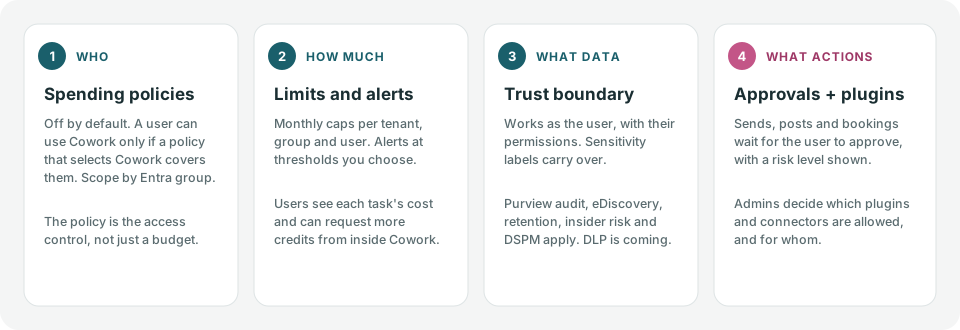
The gotchas we see most:
- The spending policy is the access control. Cowork is off by default. To keep someone out, leave them out of every policy that selects Cowork. Lowering their limit isn’t enough.
- “Auto-apply new services” is on by default. New Microsoft services that bill by usage can join your existing policies automatically. Turn it off if you want to review each one.
- Set a per-user cap. Without one, a single enthusiastic user can spend a policy’s whole monthly budget.
- Approve plugins on purpose. Treat a plugin’s connector like any other app that can read your data.
Cowork’s plugins, skills and MCP servers are managed in Agent 365, the same place you govern the agents you build in Copilot Studio.
How to get started
- Turn on usage-based billing in the Microsoft 365 admin center (Copilot > Cost management).
- Create a spending policy for a pilot group, with a per-user monthly limit and alerts.
- Write two or three custom skills for the team’s most common deliverables.
- Review a month of usage, then decide on plugins, wider rollout and a pre-purchase commitment.
Cowork is the clearest sign yet of where Microsoft 365 Copilot is heading: from an assistant you ask to a teammate you delegate to. If you want help planning the rollout, the budget or the custom skills, that’s what our Copilot and AI agent development team does every day. For the bigger picture on choosing between AI tools, see Copilot vs ChatGPT vs Claude.